Thursday, June 25, 2020

Introduction and Story Map

My name is Reed Welke and I currently live in an RV and work remotely for a flooring company based in Charlotte, NC.  I am enrolled in the GIS Administration program and am on track to graduate in the summer of 2022.  I travel the country with my wife and two dogs and hope to challenge myself and get into a more meaningful line of work with the assistance of this GIS education.  I am sure I will see many familiar faces and I look forward to working with you all again!

Thursday, June 18, 2020

Working with Vector Geometries in Python

This week, we explored vector geometries in Python.  We were given a rivers shapefile with 26 objects and 247 vertices and were tasked with writing a script that would create a new text file, identify the OID, vertex ID number, X coordinate, Y coordinate and feature name, and write those parameters in the newly created text file.  Below is a snippet of the completed text file after the script has been run.

Below are some of my notes related to this project, and a brief pseudocode describing the process.

Start:
Import arcpy catalog
Set environment = S:/GISProgramming/Module6/Data
Overwrite Workspace = True
Create new text file, make file writeable
Specify cursor to search through fields in a shapefile
Create a loop to iterate through fields
                              Nest loop to allow the cursor to find vertices of all points in a multipoint file
                              Write code to text file with following paramaters:
                                             OID, Vertex ID number, X Coordinate, Y Coordinate, and Feature Name
                              Print statement equal to the code that is written to the text file
Close text file
Delete cursor
End                                     
1 I struggled the most with grasping the concept of row[0, 1, 2] as a representation of the Search Cursor parameters. Once I finally grasped this concept (which was very obvious when reading through the arcpy catalog help), I was able to finish the code with relative ease.

2 As with all previous labs, the logic of python becomes obvious once you write a code sequence correctly. It can feel defeating at times, but when you finally have that aha moment, it all comes together and you feel your knowledge of the language take a leap forward.

3 I cannot express enough how helpful it is to have relatively little guidance on the lab assignments because they force you to really think and solve the problems on your own. This makes it difficult, but the learning is increased because of the need to figure it out for yourself with snippets of the solution scattered through the exercises and readings. It makes me feel as though any problem is solvable with Python if you are willing to take the time and solve it.

Saturday, June 13, 2020

Basic Tasks in ArcGIS with Python

This week, we created a geodatabase, copied shapefiles from a folder into the geodatabase, created a searchCursor with a SQL query and a for loop to retrieve the populations of each city listed as a county seat in New Mexico, and then created a dictionary of those values and printed the dictionary.  The results from my code are pasted below:


I had some difficulty when printing the “POP_2000” field in the section where we were listing the County Seat statistics. I kept getting the error that POP_2000 must be string and the logic of where to place the ‘str’ to convert this object from an integer puzzled me for a bit. In hindsight, it was a very simple fix, but I struggled for a while with that. I ultimately realized that the correct location was before the row.getValue function as follows:
print("Population circa 2000: " + str(row.getValue(field2)) + "\n")

I also had issues with finding the correct way to efficiently get the searchCursor set up so that I would be able to retrieve only the cities listed as a “County Seat”. I debated creating a copy and deleting fields so that it could only print the existent fields, but knew it was not the best route. I then realized the SQL query was all too obvious. I used the following line of code to select only the County Seats:
cursor = arcpy.SearchCursor(fc,'"FEATURE" = \'County Seat\'')

My final major hurdle in this experience was in getting the dictionary updated with all of the county seats and their respective population. I kept getting the “NAME” and “POP_2000” as the only populated fields in my dictionary. Again, the solution was very logical and I finally realized the need to input the entire ‘row.getValue’ + the correct field in my update function in order to iterate and populate the dictionary as desired. That line of code resulted as follows:
for row in cursor:
     dictionary.update({row.getValue(field):row.getValue(field2)})


In summation, I found this lab to be the most challenging and most rewarding so far. I am really starting to see how the code fits together and how it gives us the ability to complete complex tasks by stacking the Legos together. The answers are all very logical, but it can be difficult to see the obvious errors until you have experienced them a few times first hand.  The basics of importing catalogs, assigning proper variables and setting the work environment are key to being able to dig into the most difficult problems you are trying to solve. Without the fundamentals in place, one can get bogged down in simple mistakes and issues. A good foundation is paramount.

Sunday, June 7, 2020

Geoprocessing

This week, we built a model that clipped, selected, and erased specified features of a geodatabase.  We then wrote a stand-alone script to add XY coordinates to a layer, create a buffer around those data points of 1000 Meters, and dissolve the buffers into single, combined features when necessary.  We also printed the functionality of the code with a get.Messages function.  The image below shows the results of my final code.


1        My thought process for creating the above script was to examine the basic code descriptions provided by ArcGIS help and get a feel for how each of the tools worked. 
2        I then thought it would be good to start with the basics of setting my environment and allowing files to overwrite.
3        Once I had done that, I pasted a skeleton version of the add XY code and input the correct file paths and adjusted everything according to our desired outcome and the layers we were working with.  I ran the debugger to make sure all of my code worked.
4        I then used the buffer analysis tool with the dissolve option and input the given parameters. I ran the code to make sure it worked.
5        Once I knew the code functioned without error, I created the print statements using the get.Messages function and everything worked.
6        I chose not to add the dissolve tool separately as another piece of code to supplement the add XY and buffer, but used the dissolve abilities of the buffer analysis tool to complete that in one step and achieve the same result.
7        My overall strategy was simply to go step by step, gain as good an understanding as possible of the meaning behind each of my actions, and keep at it until everything worked.

This was a great lab to get a taste of how Python is integrated into everything we do in arcGIS Pro.  I look forward to digging deeper into the world of Python.

Thursday, May 28, 2020

Debugging

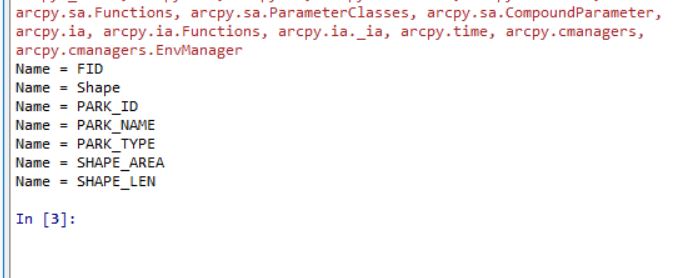
Another week, another leap in understanding the world of GIS Programming.  This week, we were tasked with debugging three different scripts designed to provide information related projects in ArcGIS Pro.  The first script (as shown executed below) provided a printout of the fields in the park shapefile attribute table. In terms of programming, this first script just had some mismatching capitalization, font inconsistencies and an incorrect link to the folder with the shapefile. The fixes were rather obvious and easy to correct for without requiring additional assistance from the debugging tool.


The second script provided a printout of the names of all layers in the associated project in ArcGIS Pro.  There were a number of errors in this script, and to make it easier for myself, I used the debugging tool in Spyder to go through each line of code one by one, identify the issue and resolve, then move forward.
I found and corrected the following errors: A case error with the filepath definition. A missing y when referencing the arcpy catalog. An incorrect filepath for output, an incorrect file path for the project location. A missing e in spatialReference. The "for map in maps:" was incorrectly stated. and A misspelling of map within the code.  The debugging tool was a great help in processing this information quickly and easily.  The resulting code printed as shown below.


The final challenge was to use a try, except statement in order to successfully run a script without actually correcting the errors.  I still had to correct the generic filepaths so that I was actually calling on the correct data before running the code, but I corrected no other errors and simply used the following method to successfully run the code.  I input "try:" at the top of the code, indented the rest of the code in part A.  I then input the following except statement... 
 except Exception as e: 
     print(e)
at the bottom of the code and ran the code.  This resulted in the printout below.


The most fundamental things I have noticed so far in this class are the importance of spelling, capitalization, correct file paths for whatever project you are working on, and understanding catalog functions and how they can correctly and effectively be used. Attention to detail is key, and rushing through a coding process will not benefit anyone. Successful programming is akin to the old adage: “Measure twice, cut once.”

Sunday, May 24, 2020

While Loops and If Else Statements

In this lab, we were tasked with selecting and printing an item from a list, debugging a pre-written code for a dice game, using a while loop to create a random list of 20 numbers, selecting an unlucky number and printing how many times it showed up in the list using if else statements, and finally removing that number from the list using another while loop.  The results of my experience are shown below.


Part 1:

Create string variable consisting of full name
Split the name using a space as identifier
Print last name in list


Part 2:

Run the existing code to see what errors existing

Debug error, run again

Debug error, run again

Print successful results


Part 3:

Create empty list

Assign counter variable

While loop
     Generate random integer
     Append to list
     If statement to set list length to 20
          Break loop

Print list


Part 4:

Assign variable to unlucky number
Count method to see how many times number shows up in list

If statement to print if the number does not show up in the list
     Else statement to print if the number does show up, how many times it needs to be removed

While loop if z in lucky list
     Remove method to remove until the number no longer shows up in list

Print list


A few of the important things I learned from this lab are:

1 Keep it simple… If the code does not require additional steps, don’t add additional steps.

2 Very important to give a while loop the x+=1 command.

3 I was able to complete this task with a for loop before I was able to complete it with a while loop. And while I see the reasons for not using a for loop in general, I had a lot of trouble getting the while loop to work. I kept sticking with it and now it all seems rather simple. It did not feel that simple when I kept running into issues though. It makes for a very rewarding conclusion once it finally works.

4 I think one of the most important lessons for me is to not attempt too much code at once. Break the code down into subsequent parts and get it working as you go. I played around with having the 4th part of this assignment running before the 3rd part was completely successful. It didn’t necessarily hurt me to try, but I think you run the risk of information overload when trying to do too much at once.

Friday, May 15, 2020

Create Your Own File Path


In this lab exercise, we executed a pre-written .py file using the Spyder IDE in order to create our file folders for the GIS Programming class.  Instead of having to create eight basic folders with three folders in each of those, we simply ran a program and voila! The result of my code execution is shown below.


The lab for this week was pretty straightforward and gave me more confidence with the idea of running scripts to automate tasks. I have never used Python before so this was a great lesson to familiarize myself with the very basics of a few Python interfaces and feel the excitement of seeing how code is executed. When I first saw the code for creating new folders in the S:\, I have to admit I felt intimidated, but seeing it in action makes me want to understand it better so that I may create programs with similar, or even greater, capabilities.

I found the idea of pseudo code to be very helpful for laying out a plan to more successfully complete code. I will use this concept in the future as a way of organizing my thoughts before beginning to solve complex problems with code.